Translate this blog into the language you speak.

Sunday, 29 September 2013

5 MUST HAVE ANDROID APPS FOR STUDENTS


    Here's a list of 5 great android apps which I think is a must for high school students.


1. Formula lite


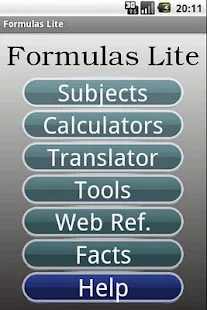
The best thing about this app is its simplicity, which is only exceeded by its wide range of usage. Most of the apps for "students" are usually for a particular age group or are for a particular subject but this app is a kind of all rounder. All science subjects, translator, calculators, built in game- you name it. The best part is that it is completely free. https://play.google.com/store/apps/details?id=com.math.formulas&hl=en-


2. Evernote


This app is actually quite popular. Welcome Evernote, The gold lining of note making apps. You can digitize and search notes you took on paper. It’s fully cross-platform, with an app for every device and an extension for every browser. And it’s incredibly powerful.
Google play link-https://play.google.com/store/apps/details?id=com.evernote&hl=en

 3. A cloud storage

 Two of the best in this category are Dropbox and Google Drive.

 4. A dictionary

  I recommend Dictionary.com.


5.My Class Schedule

  Though there are several apps that help students organise their schedules, including class time-table, homework, exams dates and so on, the My Class Schedule app does it quite efficiently and is free of cost.
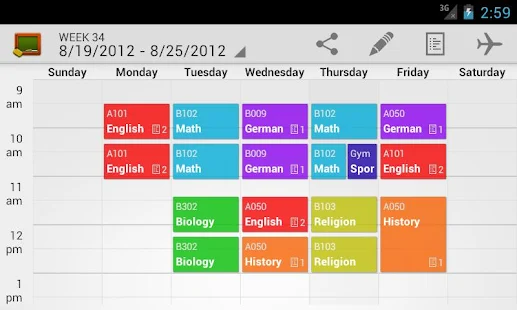
The colour coded time-table UI appears very lively and cool. It lets you include courses, lesson times, homework and grades. The app is quite handy whether you are a school or college student.

Google Play link- https://play.google.com/store/apps/details?id=de.rakuun.MyClassSchedule.free&feature=more_from_developer#?t=W251bGwsMSwxLDEwMiwiZGUucmFrdXVuLk15Q2xhc3NTY2hlZHVsZS5mcmVlIl0.

 If you know any other great students app, please mention in the comments section.

For any query, feedback, suggestions, feel free to contact me at milind.yadav183@gmail.com
or parthrockssmailbox@gmail.com.
:-) 


Saturday, 28 September 2013

Android vs. IOS Part 1


Operating Systems have developed a lot in last 15 years. Starting from black and white phones to recent smart phones or mini computers, mobile OS has come far away. Especially for smart phones, Mobile OS has greatly evolved from Palm OS in 1996 to Windows pocket PC in 2000 then to Blackberry OS and Android. One of the most widely used mobile OS these days is ANDROID, the other is Apple's IOS.
The smartphone world is mainly divided into Google's hugely popular Android and Apple's IOS. Sure there are many other operating systems in use, but they nowhere match the popularity of these two. In the following sequels, I will present main characteristics, similarities and the differences of these two popular operating systems.

Tuesday, 24 September 2013

Android users can now lock their lost devices remotely


Released in August, Google's Android Device Manager is a handy service that allows you to see the location of a lost or stolen Android device. You can also remotely tell the device to ring as well as erase all of its data. Now, you can add one more feature to that list.

The latest update to Android Device Manager enables remote password locking. If you want to prevent others from accessing your missing device, you can send a new password to secure it.


The feature is easy enough to implement. On your Android device, open the Android Device Manager. Check the options to remotely locate your device and to allow remote lock and factory reset if not already checked.
Browse to the Android Device Manager Web site and scan for your device. You should see three options: "Ring," "Lock," and "Erase." To send a new lock code to your device, click on "Lock." Enter and confirm the new password and then click on the "Lock" button. Your device will display an alphanumeric keypad requiring someone to key in the new password to access the device.

Monday, 23 September 2013

5 tips to make better use of Google Now!

Having Google Now is like owning a personal assistant, giving you the ability to manage, search for and organize your information easily within your phone. Your related searches, flight tickets, restaurant reservation, friends’ location and more are presented in specific and minimalistic Google Now cards.


1. Use Google Now Research Topics

All the searches that you do on Google Now will be finetuned and condensed into a research topic that is based on your search queries and the links you click into. To check out what your past searches revolve around, check out your research topics here.

2. Get Reminders

When you search for a TV show, music artist, actor or filmmaker on Google Now, you will find at the bottom of the search card a "Remind you about new episodes?" option. Click that to enable it and Google Now will automatically remind you if there is a new update in your search query e.g a new episode.


3. Commute Sharing

If for some reason you need your location to be known by friends or family on Google+, you can enable Location Sharing between you and your circle(s). For detailed instructions you can visit here.
More importantly, you can also enable Commute Sharing in Google Now. What can this do for you? Well, if you live in the city where traffic jams and breakdowns in public transport are common then this will help your family and loved ones keep track of where you are in your latest commute.
On Google Now, go to Menu > Settings > Google Now > Traffic then enable "Let them see your commute updates’.


4. Gmail Cards & Reservations

You have Google Cards, and you have Gmail Cards. If you usually make reservations or bookings and receive the confirmation of these reservations via your Gmail, you can allow Google Now to access your account for these reservations and pull them into more organized cards.


5. Say ‘Google’ To Enable Voice Speech

While enabling the microphone is as easy as a tap, it can get easier — just say ‘Google’. Now for this to work, you will need to activate the Hotword detection first. Go to Google Now menu > Settings > Voice and tick ‘Hotword detection’. After this, to run a search by voice just say ‘Google [your search query]‘.


Sunday, 22 September 2013

Google Adds Probable Android 4.4 Screenshot To Keyboard Update, Shows New Status Bar With Gray Icons And KLP Debug Icon


kk2


Google is juggling a lot of things right now. It's really not realistic to expect no one in the company to ever make a mistake. Well, today's slip-up is to our advantage. The most recent update to the Korean keyboard IME in Google Play contains a new screenshot which appears to be from Android  4.4 KitKat.


The status bar has light gray icons and clock font, which has been suggested in a number of leaks. There was also a hint of gray icons in the recently leaked video. Over on the other side of the status bar is a debug icon – a piece of pie. The debug icon in Jelly Bean is a little Android jelly bean, so this screenshot was probably taken on a device that still had the decoy Key Lime Pie ID. We knew Google was keeping things under wraps with regard to the KitKat naming, and it looks like designers are still working on getting the Android 4.4 graphics updated.

Android Version Names

Google's Android division certainly has a sense of humor as it named all their version codenames after desserts.

*Since April 2009, Android versions have been developed under a codename and released according to alphabetical order:

Cupcake (1.5), Donut (1.6), Eclair (2.0–2.1),Froyo (2.2–2.2.3), Gingerbread (2.3–2.3.7), Honeycomb (3.0–3.2.6), Ice Cream Sandwich (4.0–4.0.4), Jelly Bean (4.1–4.3), and KitKat (4.4).